




Google Tag Manager Pixel
Google Tag Manager (GTM) is a free tool from Google that allows you to easily add and manage tracking scripts (called tags) on your website without directly editing the site’s code.
With GTM, you can install tracking pixels from platforms like Facebook, Google Ads, TikTok, and others all from one place.
e.g. GTM-ABC123DE
Integrating your minzo.link pixel through Google Tag Manager provides several benefits:
- Quick and simple setup
- Manage all your tracking tags in one place
- No need to manually edit website code
- More accurate and reliable tracking
How to add your Google Tag Manager (GTM) pixel to minzo.link
You can easily connect your Google Tag Manager container to your minzo.link account. Follow these simple steps:
- Log in to your minzo.link account.
- Go to Tracking Pixels in your dashboard.
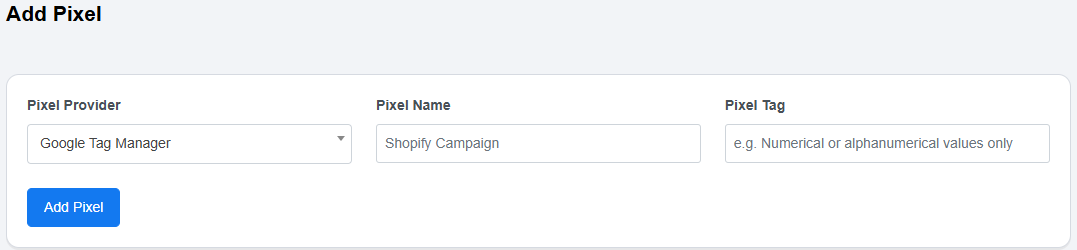
- Click Add New Pixel and choose Google Tag Manager (GTM) from the Pixel Provider list.
- Enter a name for your pixel (for example, My GTM Pixel).
- In the Tag ID field, paste your GTM container ID, for example:
GTM-ABC123DE - Click Add Pixel to save it.
How to use your GTM pixel on shortened links
- When you create or edit a short link:
- Click Customize.
- Go to the Pixels section.
- Select Google Tag Manager (GTM) or the custom name you assigned earlier.
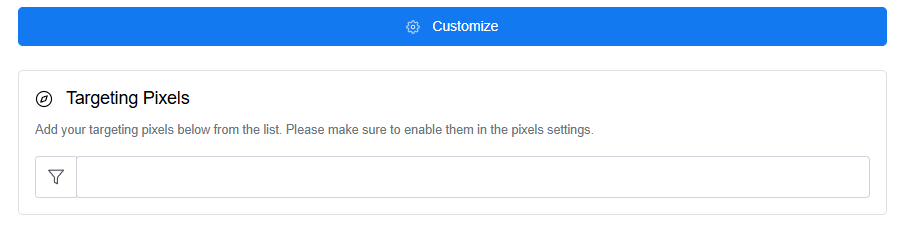
Your GTM pixel will now be automatically triggered whenever someone visits your shortened link.